The Manage Crew Tab is used to add new crew members and view existing crew members. This guide will assist hiring managers in how to use the manage crew tab. This tab is permission based and is not available to all users.
This article shows you how to perform this task in both Classic and New experiences.
Steps for Classic Experience
Clicking the Manage Crew tab, located at the top left of the screen, will take you to the manage crew page.
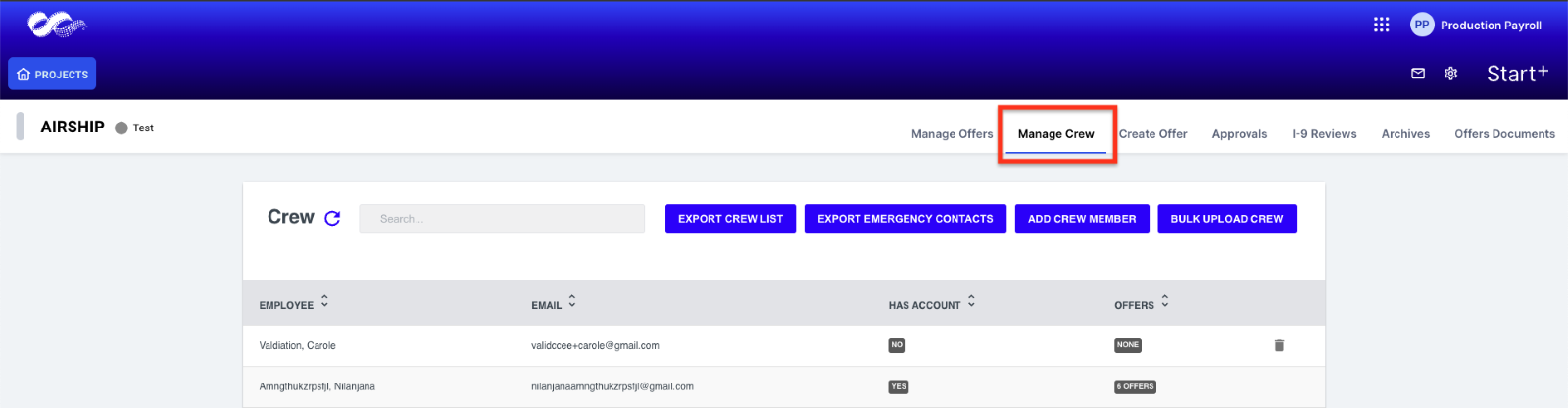
- Log in to Start+.
- Click Manage Crew.
- Here, you can see the employees who have already been added. The list is sorted alphabetically by last name.
- You can add crew members one at a time, or you can upload a list.

Add crew members individually
- Click Add Crew Member. A dialog will appear where you can enter the crew member's email address and Start+ will check to see if the crew member already exists as a user.
- Enter the email and click Next.
If the crew member exists, their details will appear. Click Add Crew Member:
If the crew member does not exist, you will enter their details and then click Add Crew Member:
Upload a crew member list
- Click Bulk Upload Crew to import a list of crew members.
- When the dialog appears, click Sample to download a CSV template to your desktop.
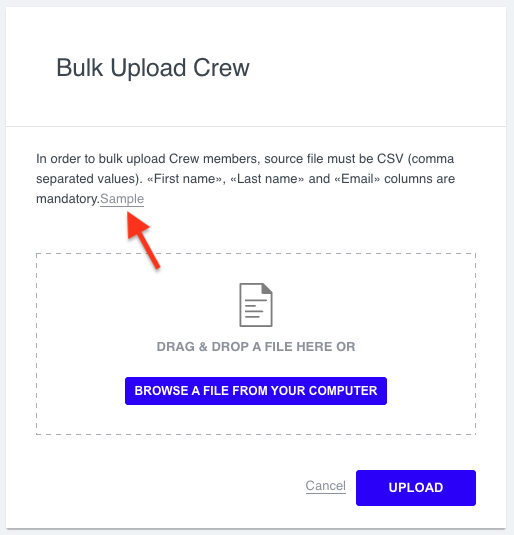
- Choose a name for the file and click Save. Note that the format is CSV (comma-separated values).
- Open the file and add the crew members’ names and email addresses Save and close the file.
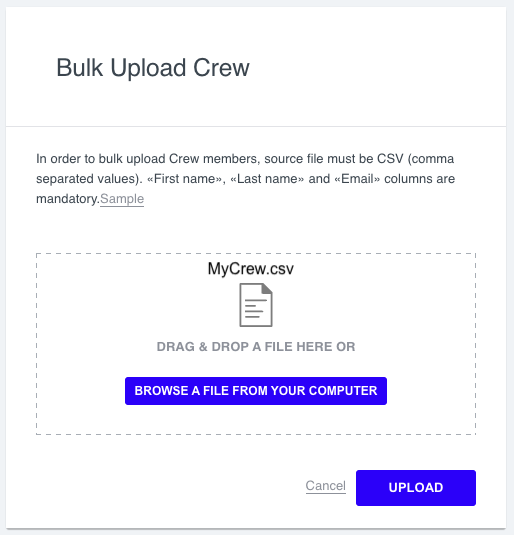
- You can either drag-and-drop the file onto the dialog or look for it on your computer by clicking Browse . When you are ready, click Upload.
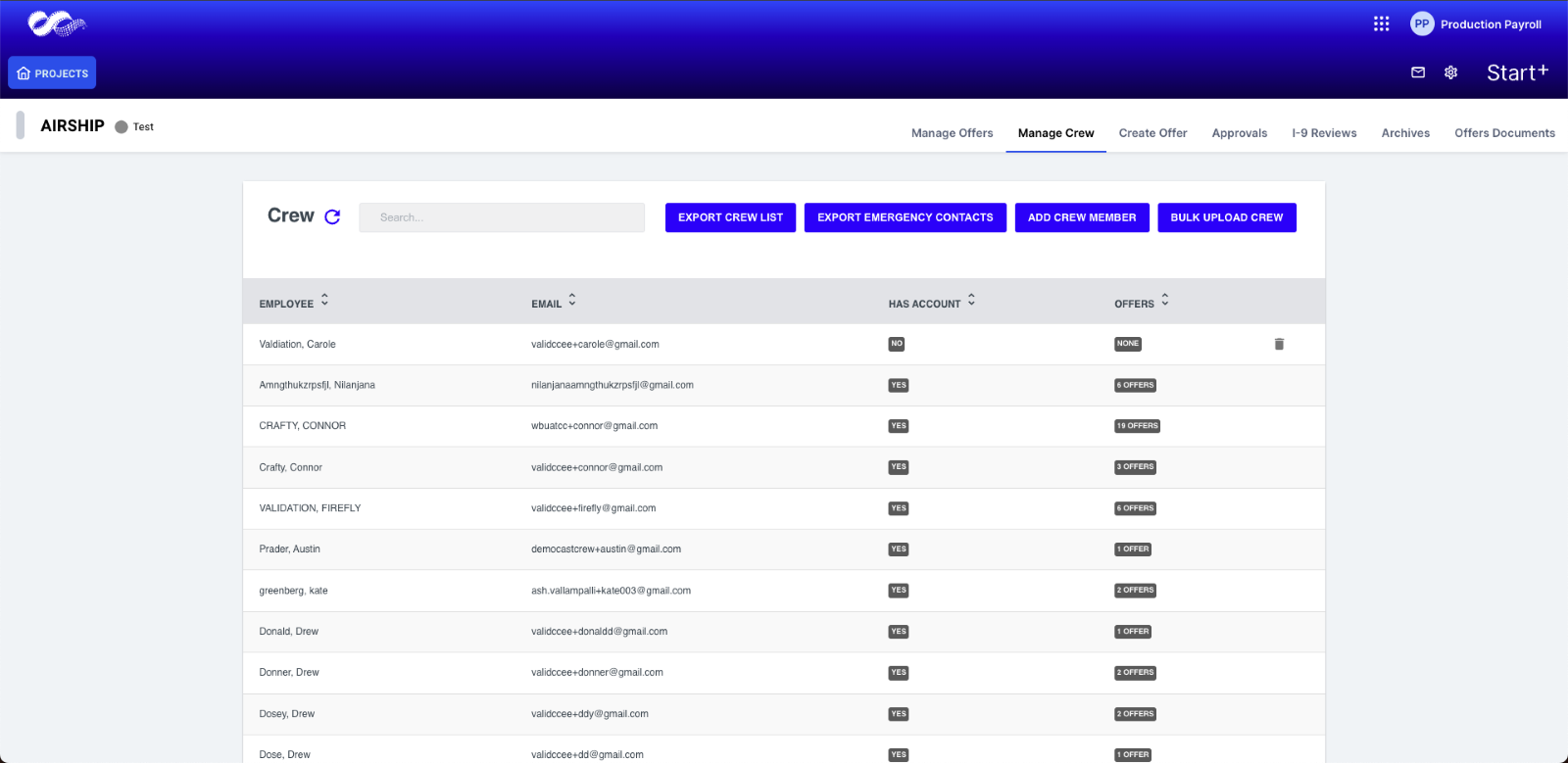
Notice that all the names appear in the list of crew members.
Export crew member list
You can also export the list of crew members by clicking Export Crew List.

Steps for New Experience
Clicking the Manage Crew tab, located at the top left of the screen, will take you to the manage crew page.
- Log in to Start+.
- Click Manage Crew.
- Here, you can see the employees who have already been added. The list is sorted alphabetically by last name.
- You can add crew members one at a time, or you can upload a list.
Add crew members individually
- Click Add Crew Member. A dialog will appear where you can enter the crew member's email address and Start+ will check to see if the crew member already exists as a user.
- Enter the email and click Next.
If the crew member exists, their details will appear. Click Add Crew Member:
If the crew member does not exist, you will enter their details and then click Add Crew Member:
Upload a crew member list
- Click Bulk Upload Crew to import a list of crew members.
- When the dialog appears, click Download sample CSV file to download a CSV template to your desktop.
- Choose a name for the file and click Save. Note that the format is CSV (comma-separated values).
- Open the file and add the crew members’ names and email addresses Save and close the file.
- You can either drag-and-drop the file onto the dialog or look for it on your computer by clicking Browse . When you are ready, click Upload.
Notice that all the names appear in the list of crew members.
Export crew member list
You can also export the list of crew members by clicking Export Crew List.