MyCast&Crew is a centralized hub for personal profile documents and digital product access. Once you set up your profile in MyCast&Crew.com, it will always stay in the Cast & Crew system, so you don’t have to redo it again and can reuse it across multiple projects that use Cast & Crew for payroll.
New Unified Dashboard Experience
Watch: MyCast&Crew Dashboard Overview
Click here to watch the mobile version 📱
Opting In or Out (while the Classic Experience is still available)
You will have the ability to opt in or out of using the new experience at any time.
To opt in to using the New Experience, after logging in to your account, click Try New Experience:
If you prefer to opt out and return to the Classic Experience after switching to the New Experience, you can click Switch to Cast&Crew Classic in the bottom left corner:
| Note: The Classic Experience will no longer be available toward the end of 2026. Opting out will not be an option. |
If you are a first-time user, click Start my registration on the MyCast&Crew login page to set up and access your profile. Learn more about creating an account here.
 MyCast&Crew Dashboard
When you log into your account, you'll see interactive sections including your most important information. This MyCast&Crew dashboard combines all your information across all projects in one place.
So you'll see timecards, pay stubs, offers, etc., from multiple projects in one place.
You can choose to view those items for single projects by using the Projects Dashboard (more on this below).
Important things to note:
- The data you see will vary based on your payroll provider, role, and how long you’ve been in the system.
- Recent Paystubs and YTD sections will only display Cast & Crew and CAPS data. If Media Services has paid you, please check the specific tabs for your paystubs and YTD details there.
- Sections will be populated with data only if you have validated your account.
- Global Navigation Menu: Access to global notifications, projects dashboard, profile, resource center, and the logout button. Hover your mouse to expand (seen below).
-
Recent Timecards: This section shows your recent Hours+ timecards for the projects you are working on. You can view the project name, work week, hours worked, and the timecard status. You can also create a new timecard directly from this section by clicking ‘Create’.
- 💡Hint: On mobile, tap '+Create Timecard'.
- 💡Hint: On mobile, tap '+Create Timecard'.
-
Recent Paystubs: Here you can see your recent paystubs from Cast & Crew or CAPS across all projects you’ve worked on. Dollar amounts are hidden by default, but you can use the “Show amounts” toggle near the top right corner to see them.
- 💡Tip: To view all paystubs available to you, click the ‘View more paystubs’ button.
- My Tasks: If you have any tasks to finalize your profile setup, they will be listed here.
- Recent Offers: All recent Start+ offers and their status (approved, rejected, or pending), will be shown here. You can quickly get to the signing process for any specific offer in your list right from the dashboard.
-
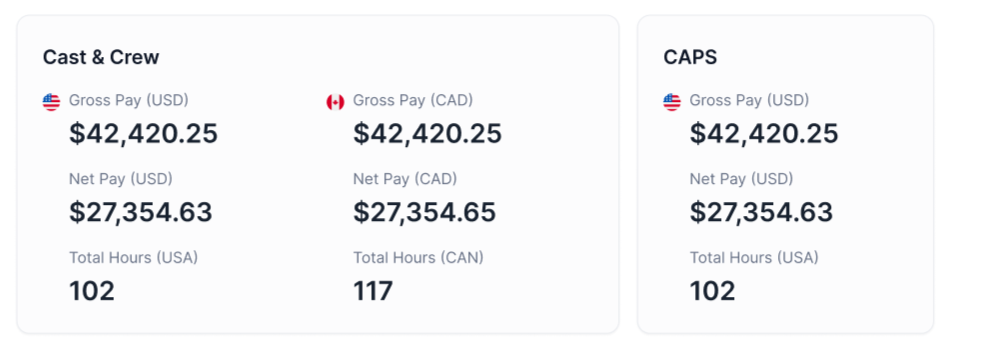
YTD Pay: Your year-to-date (YTD) pay will appear below the other four items after you receive your first paycheck from either Cast & Crew or CAPS.
-
🗨️ Note: If you’ve been paid by both Cast & Crew and CAPS, the amounts will be shown separately for each payroll entity and by currency.
-
🗨️ Note: If you’ve been paid by both Cast & Crew and CAPS, the amounts will be shown separately for each payroll entity and by currency.
Note: The paystubs and YTD amounts displayed on the dashboard will only reflect activity up to the previous day. For today’s paystub and the most current data, you can view them in their respective tabs.
How to Use the Global Navigation
All Cast & Crew projects you have access to will be in the projects dashboard. Click Projects in the global navigation menu to see your list of projects:
Your centralized notifications are above the different apps. Click on it to expand and see your notifications:
This left-side navigation drawer is collapsed by default. To expand it, simply hover your mouse over it:
Also in the left-side navigation drawer is quick access to your profile via clicking on Your Name as well as the option to Logout:
If you are on a mobile device, the global navigation menu can be accessed via the three-line menu in the top left corner:
Top Navigation
The top navigation allows you to view your tax documents, pay stubs, and more. Let’s take a look at the tabs you have access to:
- 1 – Clicking the Cast & Crew logo will take you to the dashboard, where you can access key information from all your Cast & Crew products.
- 2 – Click ‘Dashboard’ whenever you want to go back to the dashboard.
- 3 – Profile will take you to the “My Profile” page where you can make updates to your personal information on file.
- 4 - Direct Deposit allows you to manage your direct deposit for both your personal account and your loan-out business if you have one.
- 5 – Files will only show if you have accepted a Start+ offer. Here you can upload and store a collection of documents and files that you’ll be using on current and future projects. Though you won’t be able to select these documents to use on your timecard, it can be helpful to return here when you’re not sure what document to use. You can also view your completed Start+ offer packets here.
- 6 – Pay Stubs is where you can view all paystubs paid through Cast & Crew, CAPS, and Media Services.
- 7 – Tax Documents is where you’ll view and download your W-2s.
- 8 – If you’re being paid as a loan-out employee, you can add the loan-out information under the Loan-out tab. Once verified, you can also set up direct deposit for your connected loan-out.
- 9 – W-4s is where you can easily create a Federal and State W-4.
- 10 – If you need extra assistance, click the ‘Support’ tab.
Accessing Projects
You can select a single project to view all related information for that project. Unlike the MyCast&Crew dashboard where you see data from all your projects, when you select a single project, you will only see data for that project (like timecards, offers, pay stubs, etc.).
To select a single project, open the Projects Dashboard:
You will see all projects you have access to.
To open a project, click on the project name or "Go to Project". This will open the project workspace and take you to that specific project's dashboard:
-
If you are on a mobile device, the project workspace is accessible via the three line menu:
The data you see on a project dashboard is specific to the project you selected.
To quickly switch to another project, use the project dropdown in the top left corner:
From within the project workspace, you can then select which product you need to access (Start+, Hours+, etc.).
Once you open a specific product, you will see just that project's data within the product. For example, if you select Hours+, you will only see your timecards for the selected project:
Need Extra Help?
If you scroll to the bottom of your personal MyCast&Crew dashboard, you’ll find a list of frequently asked questions. This section contains answers to the most common queries. If you have a question, you’ll likely find it here or in the Help Center by clicking ‘Go to Self Service.’