| Check out all of our Studio+ courses in Learning On-Demand. |
This article shows you how to perform this task in both Classic and New experiences.
Steps for Classic Experience
How to Download Multiple Files and Folders
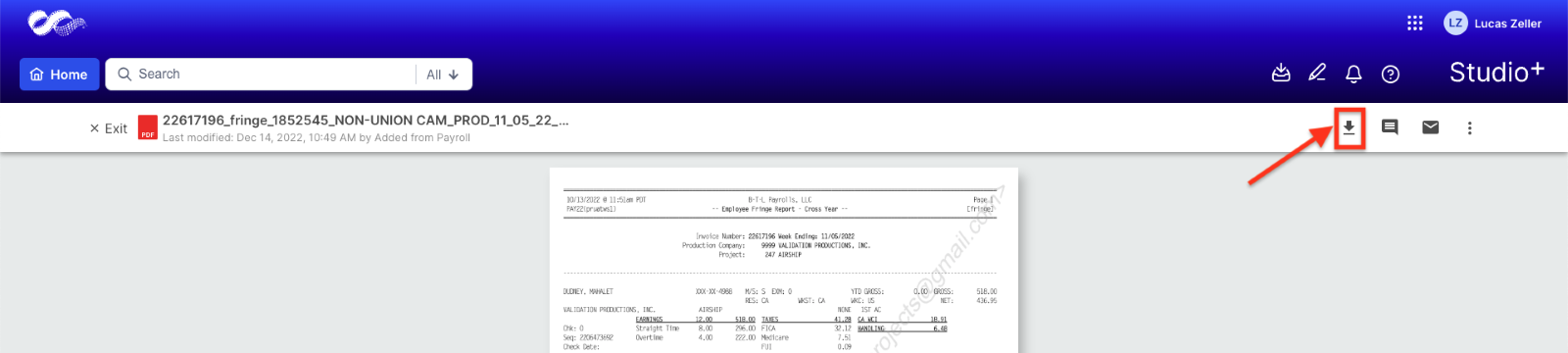
Note: Files can be downloaded within all folders and subfolders. However, subfolders can only be downloaded within the following folders:
- TO Cast & Crew
- FROM Cast & Crew
- TO Caps
- FROM Caps
- Hours+ Batch Reports
- Hours+ Timecards
- CAPS General Inbox
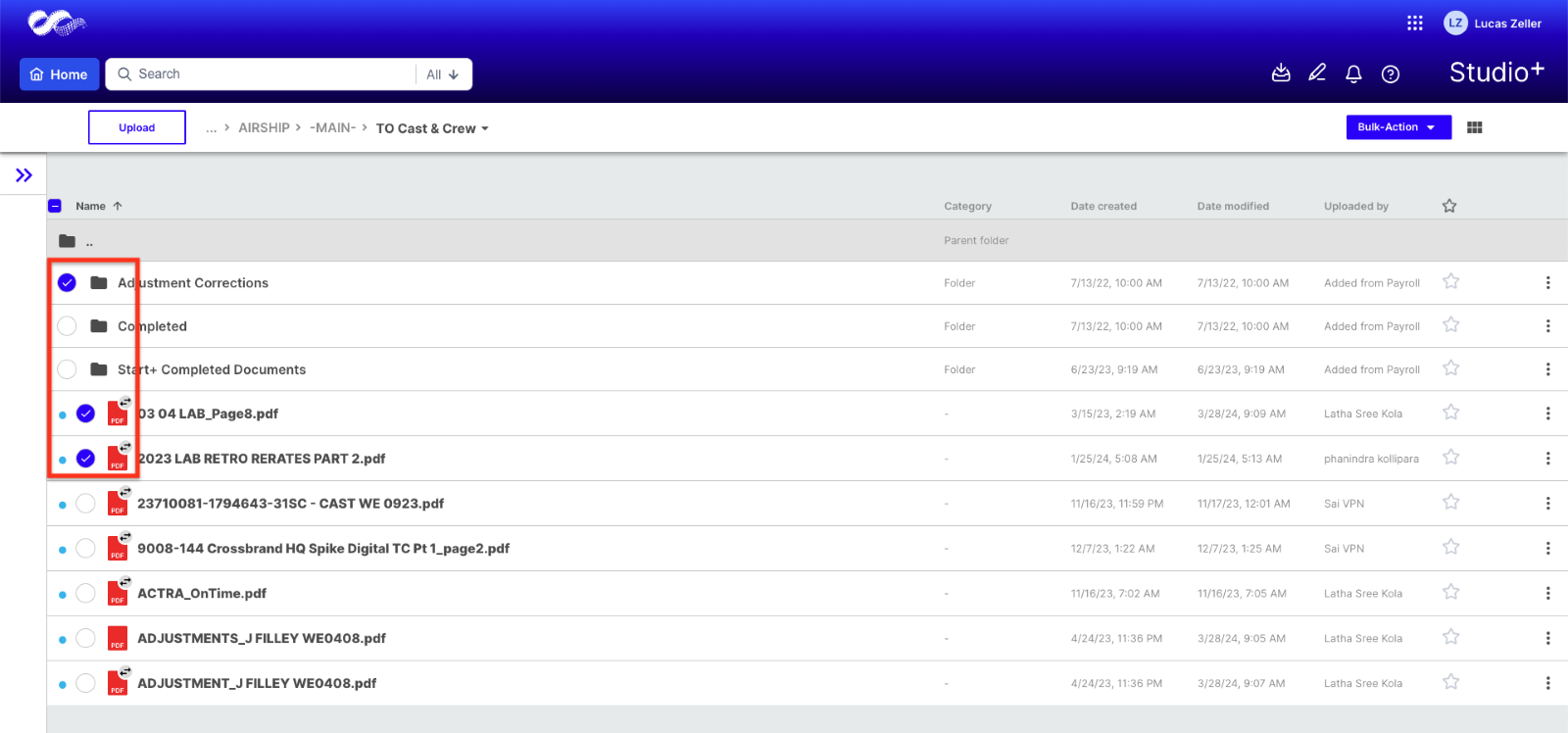
- Select the files/folders you want to download by clicking the circles next to the file or folder names, or simply click on the row.
-
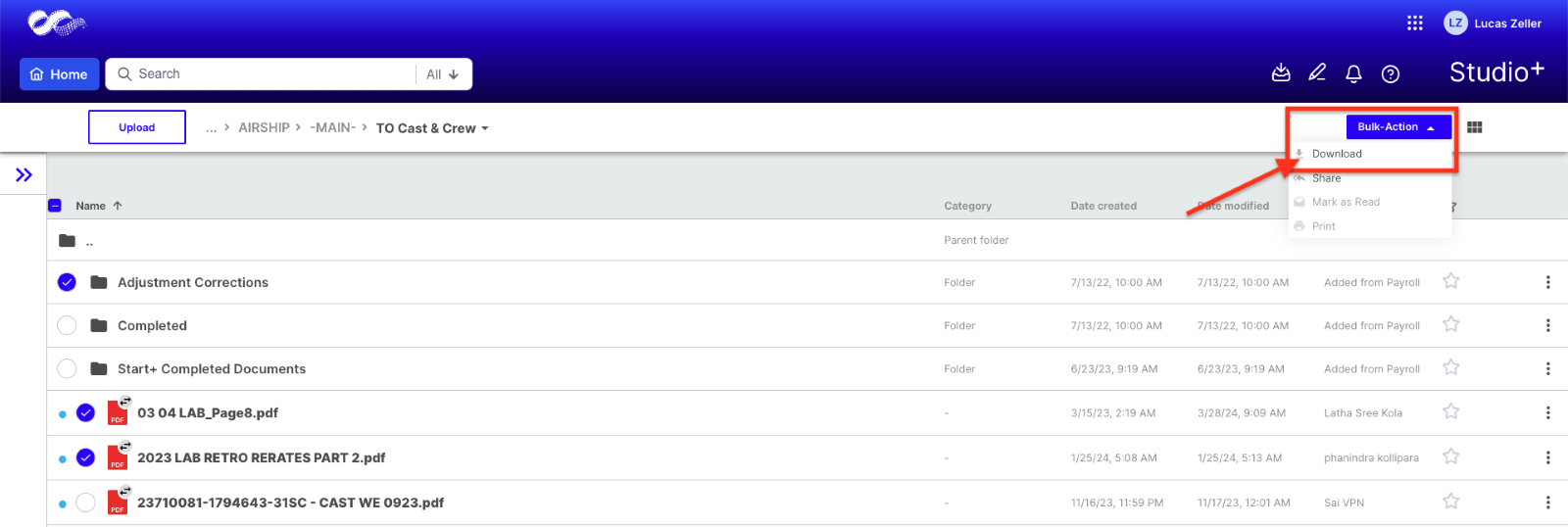
Click Bulk-Action and select Download.
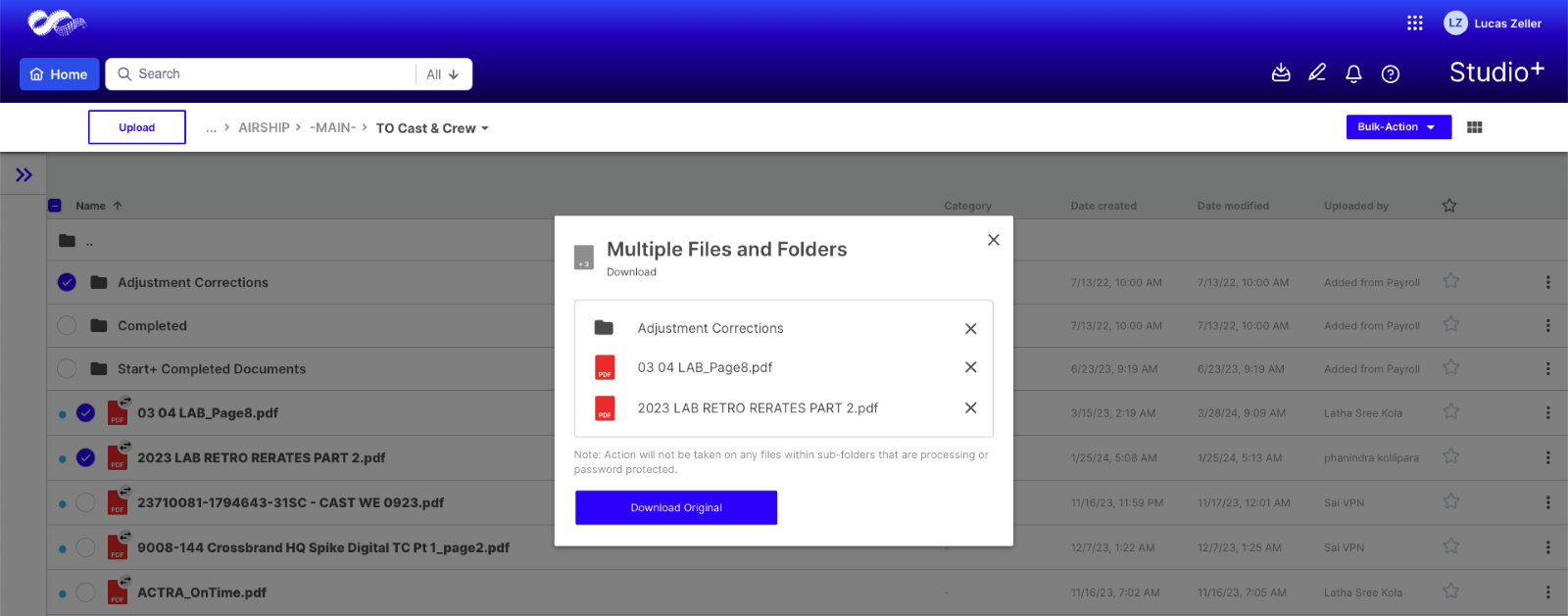
- Based on your permissions, select the option you would like the files/folders to be downloaded.
- You’ll be navigated to the Download Manager screen. This page contains all the files and folders that are ready to be downloaded or that you've previously downloaded.
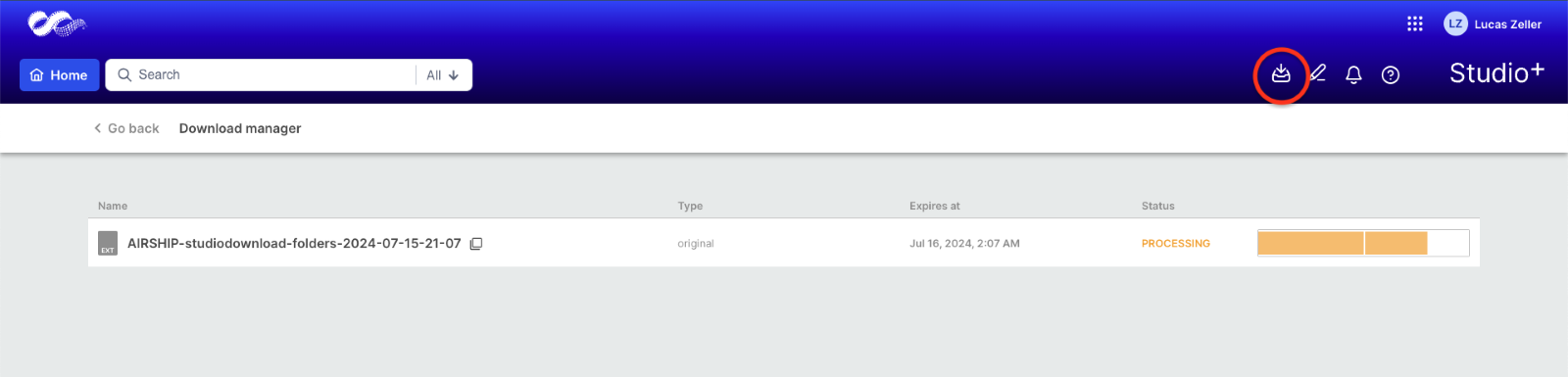
- Click download file when processing is complete.
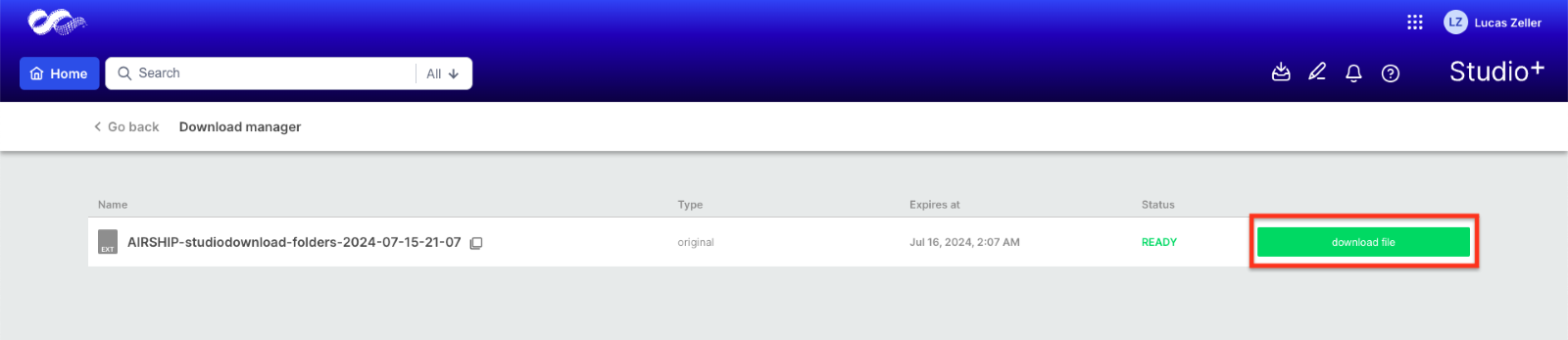
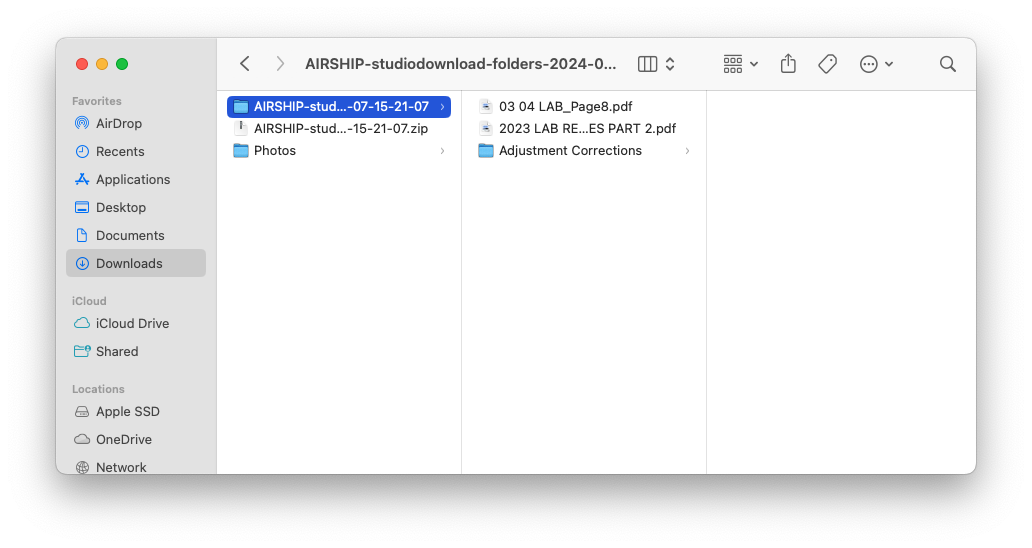
- The files/folders will be downloaded to your computer.
Note: When downloading multiple files, the files will download into a single folder.
How to Download Individual Files and Folders
You can download individual files and folders from:
- The grid/list view page
Right-click the row OR click the 3-dot menu.
Select Download.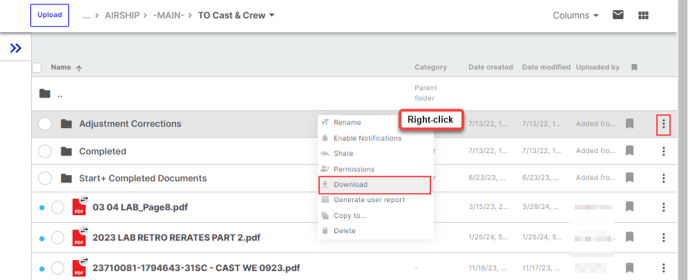
- The document view page (files only)
From the file preview screen, click the Download icon.
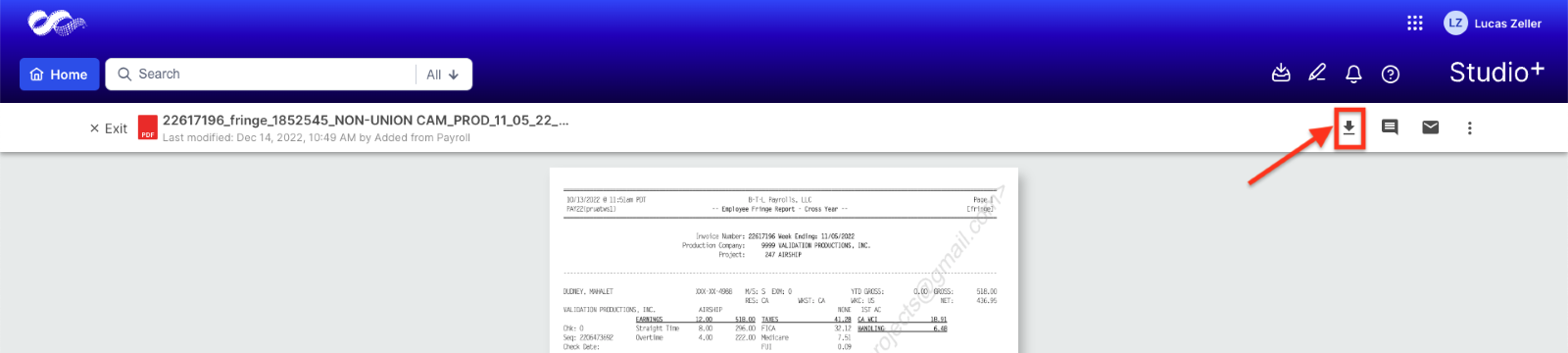
Select the option you would like the file to be downloaded.

You’ll be navigated to the Download Manager screen. This page contains all the files that are ready to be downloaded or that you've previously downloaded.
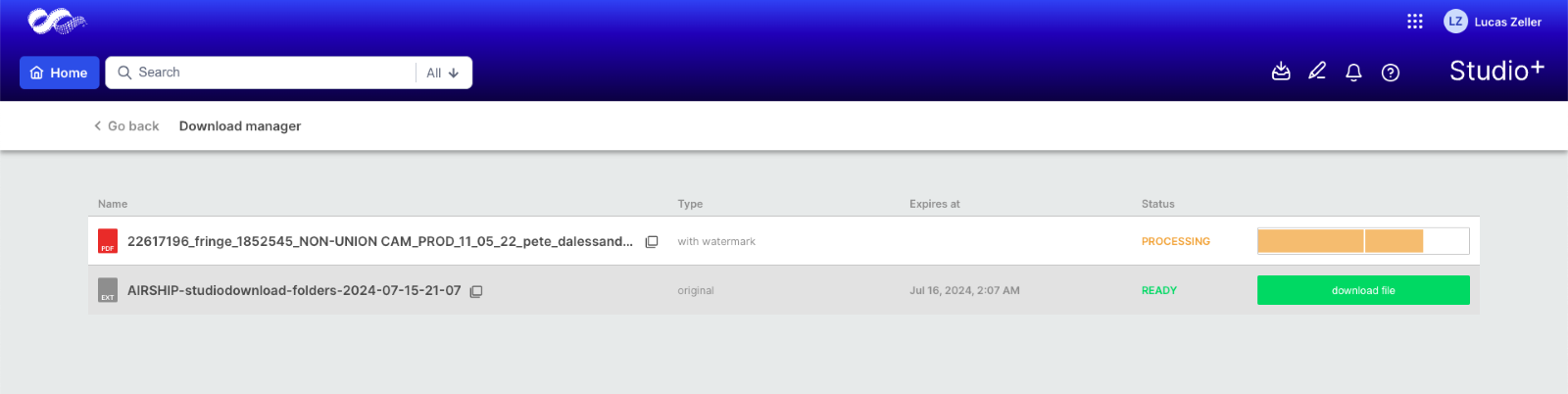
Click download file when processing is complete.
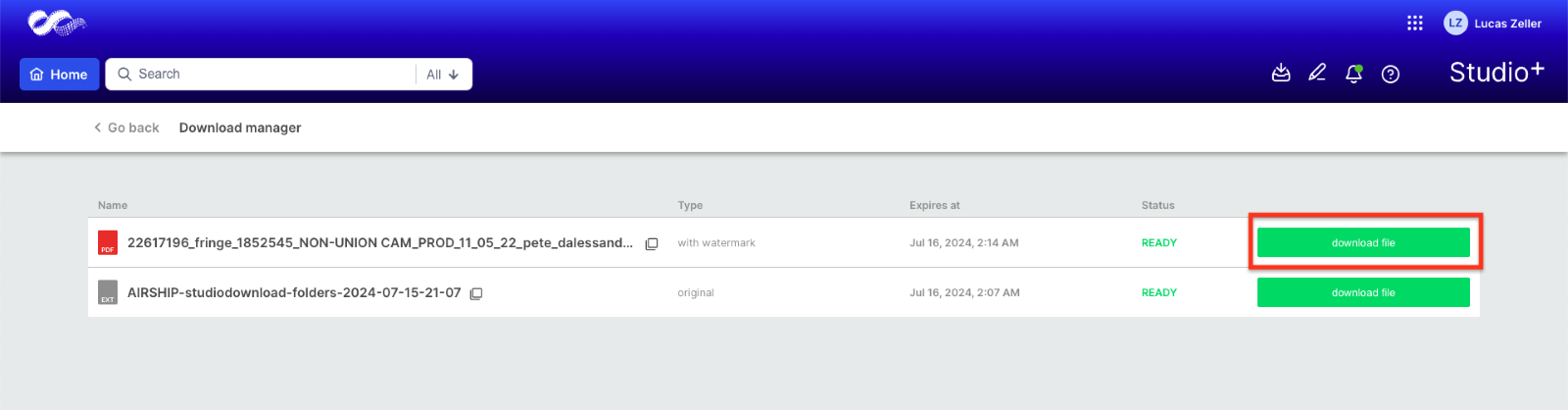
The file will be downloaded to your computer.
Steps for New Experience
How to Download Multiple Files and Folders
Note: Files can be downloaded within all folders and subfolders. However, subfolders can only be downloaded within the following folders:
- TO Cast & Crew
- FROM Cast & Crew
- TO Caps
- FROM Caps
- Hours+ Batch Reports
- Hours+ Timecards
- CAPS General Inbox
- Select the files/folders you want to download by clicking the circles next to the file or folder names, or simply click on the row. Then click Download in the bulk action menu bar at the bottom:
- Based on your permissions, select the option you would like the files/folders to be downloaded.
- You download will begin. You can track and view all previous downloads by clicking Download Manager in the top menu bar:
- The files/folders will be downloaded to your computer.
Note: When downloading multiple files, the files will download into a single folder.
How to Download Individual Files and Folders
You can download individual files and folders from:
- The grid/list view page
Click the 3-dot menu.
Select Download.
- The document view page (files only)
From the file preview screen, click the Download icon.
Select the option you would like the file to be downloaded.
Your download will begin, and the file will be downloaded to your computer.