| Check out our Crew Member course on Hours+ in Learning On-Demand. |
This article shows you how to perform this task in both Classic and New experiences.
Steps for Classic Experience
Depending on your position, your department head or accounting team may draft timecards for you.
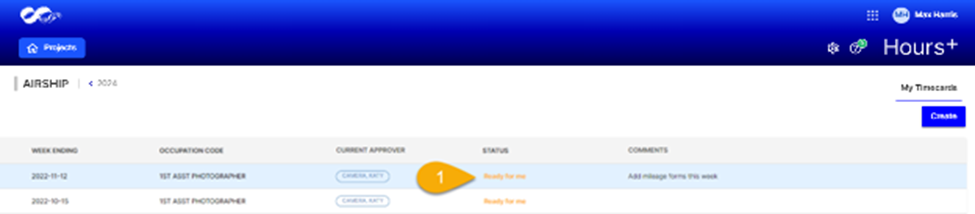
If this is the case, you will need to click on the timecard that has been drafted for you and click Approve.
If you need to change the timecard for any reason, click Edit.
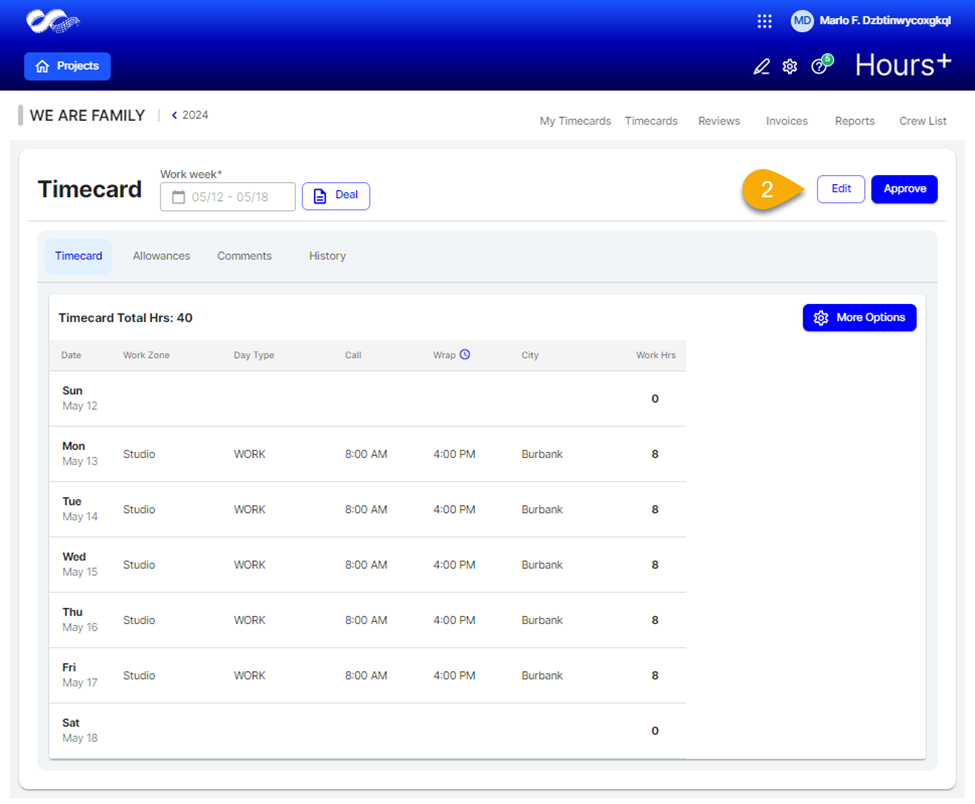
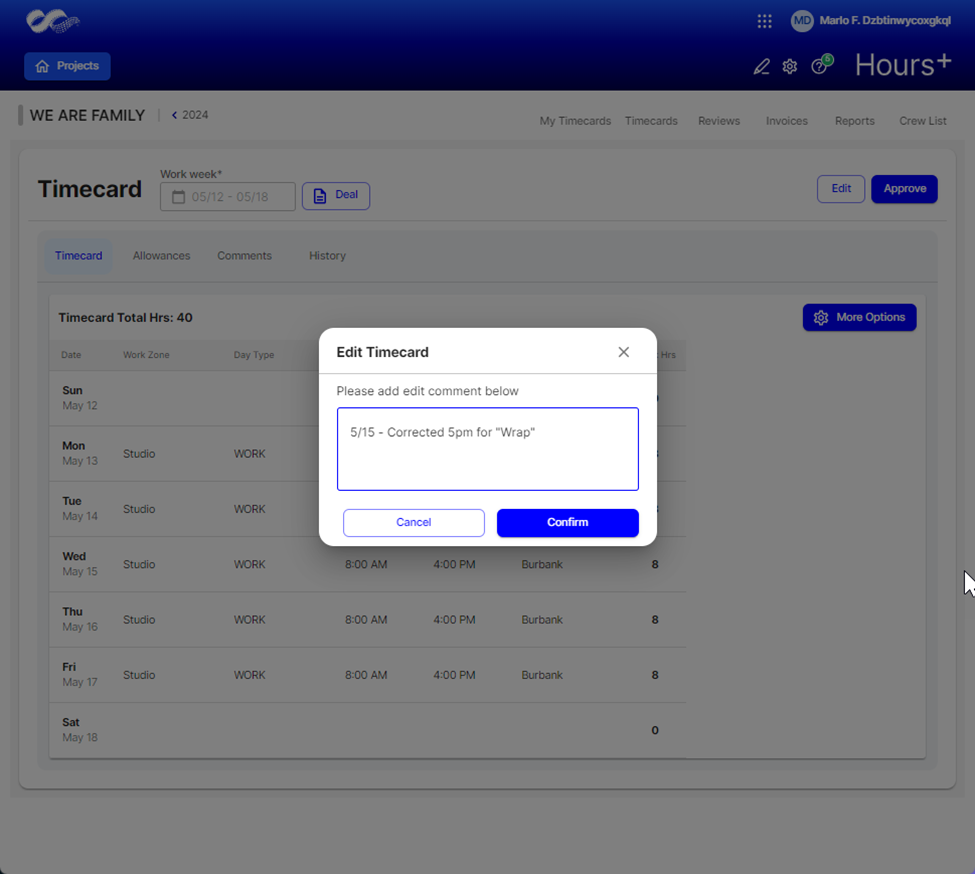
You'll need to leave a comment explaining why you're making the changes. This is because you are technically returning the timecard to your department head or accounting team for review, and a comment is always required in these cases.
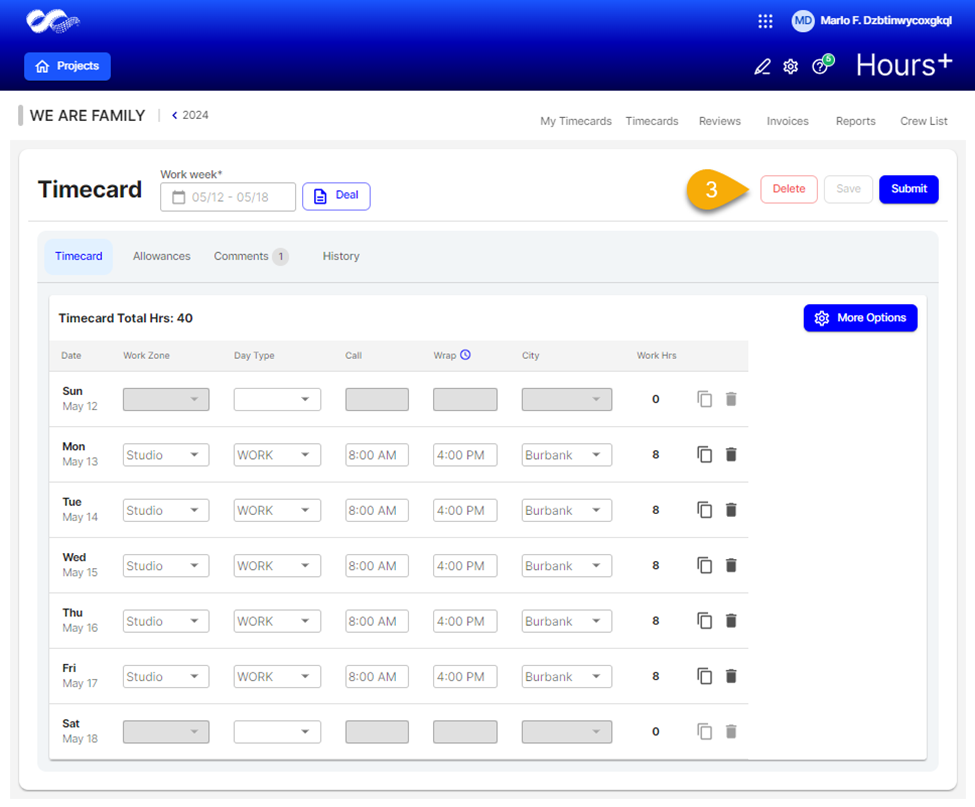
After you make your changes, click Submit and your timecard will go back to your department head or accounting team for further approval.
Steps for New Experience
Depending on your position, your department head or accounting team may draft timecards for you.
If this is the case, you will need to click on the timecard that has been drafted for you and click Approve.
If you need to change the timecard for any reason, click Edit.
You'll need to leave a comment explaining why you're making the changes. This is because you are technically returning the timecard to your department head or accounting team for review, and a comment is always required in these cases.
After you make your changes, click Submit and your timecard will go back to your department head or accounting team for further approval.